Step-by-Step: How to Get Started with JupyterHub
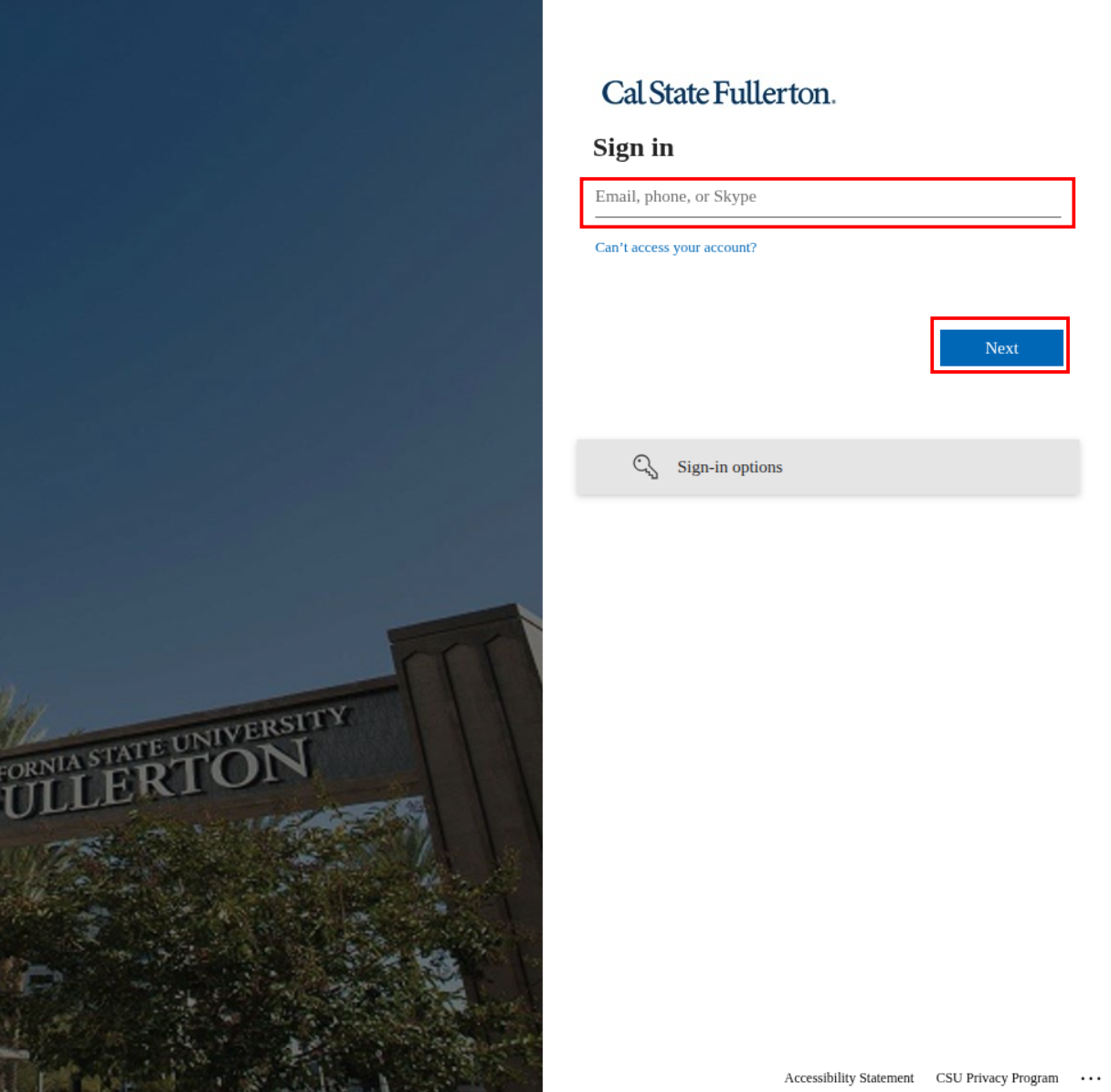
1. Open the Login Page (ENTRA ID)
Go to the JupyterHub website
Enter your CSUF campus email (e.g.
tuffy@csu.fullerton.edu) and click Next
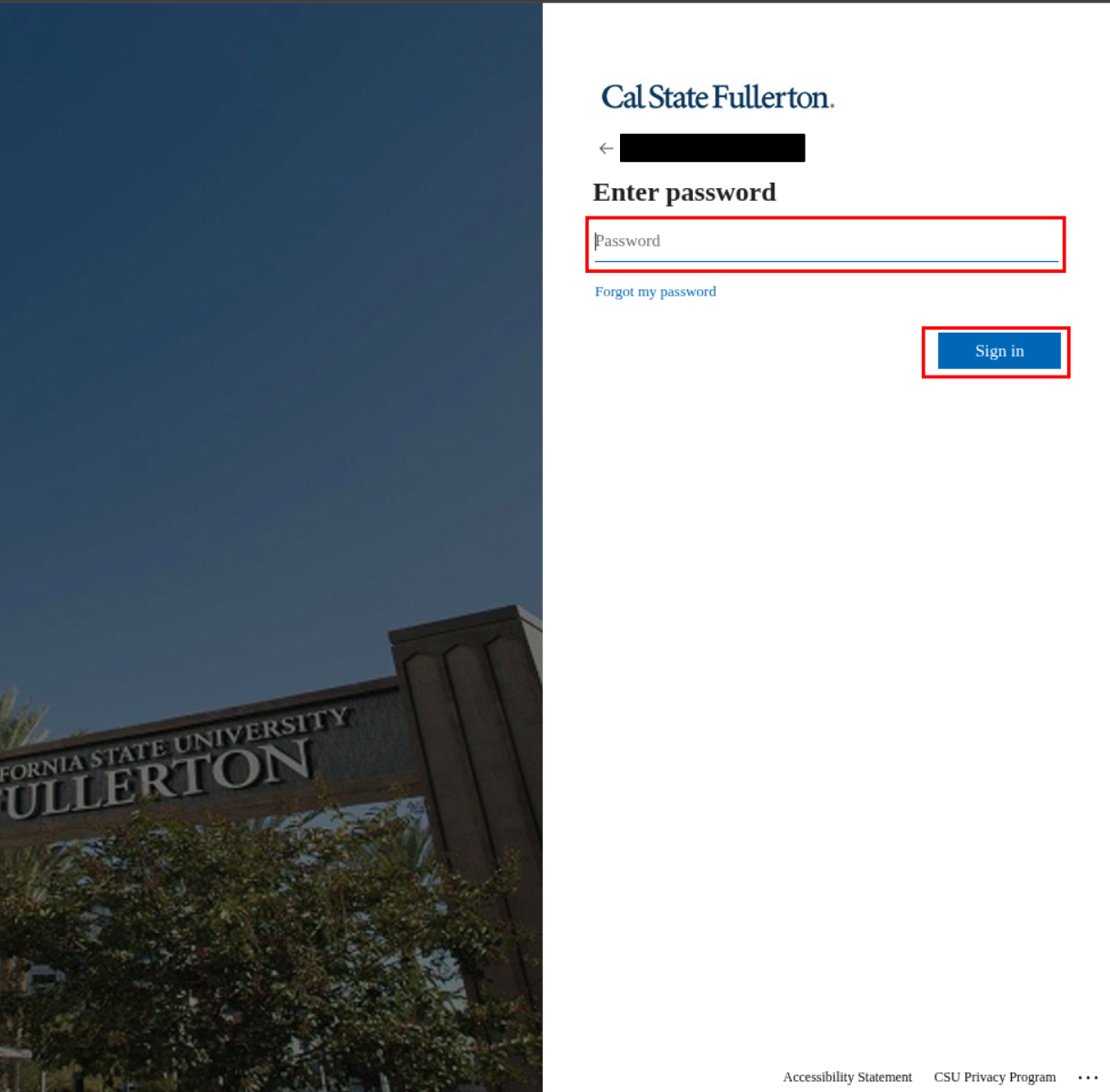
Enter your password and click Sign in
2. Sign in with DUO EAM
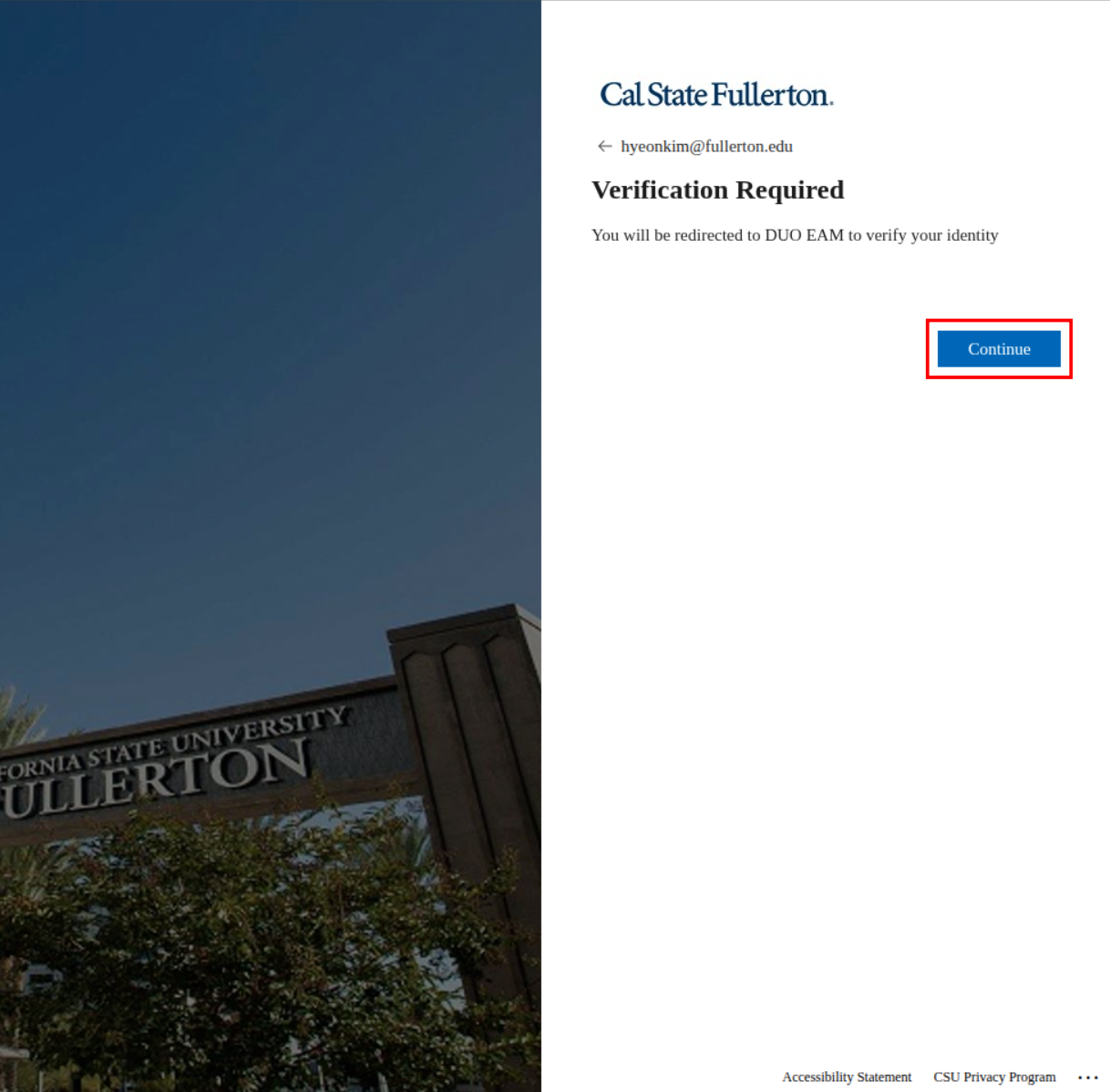
You’ll be redirected to a DUO EAM multi-factor authentication gateway.
Click Continue
Approve the login using your preferred verification method (e.g., push notification on your phone or a one-time passcode)
3. Permission Request
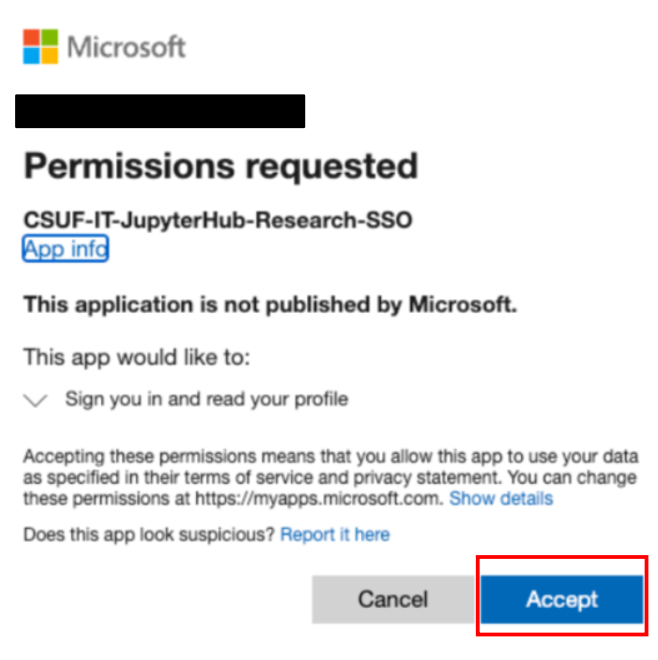
You’ll see a Permission Request page asking for access to your CSUF account.
Click Accept to authorize the JupyterHub service.
4. Set Server Options
Once logged in, you’ll see the Server Options screen.
Here you can configure:
GPUs (optional; set to
1if using GPU-enabled images)Cores (e.g.,
1,2, or more depending on your job)RAM (e.g.,
4for 4GB; leave blank for default)GPU Type (optional)
Image this is your environment, such as:
NRP Deep Learning & Data Science Full, PyTorch,SciPy,TensorFlow,R,Julia, etc.
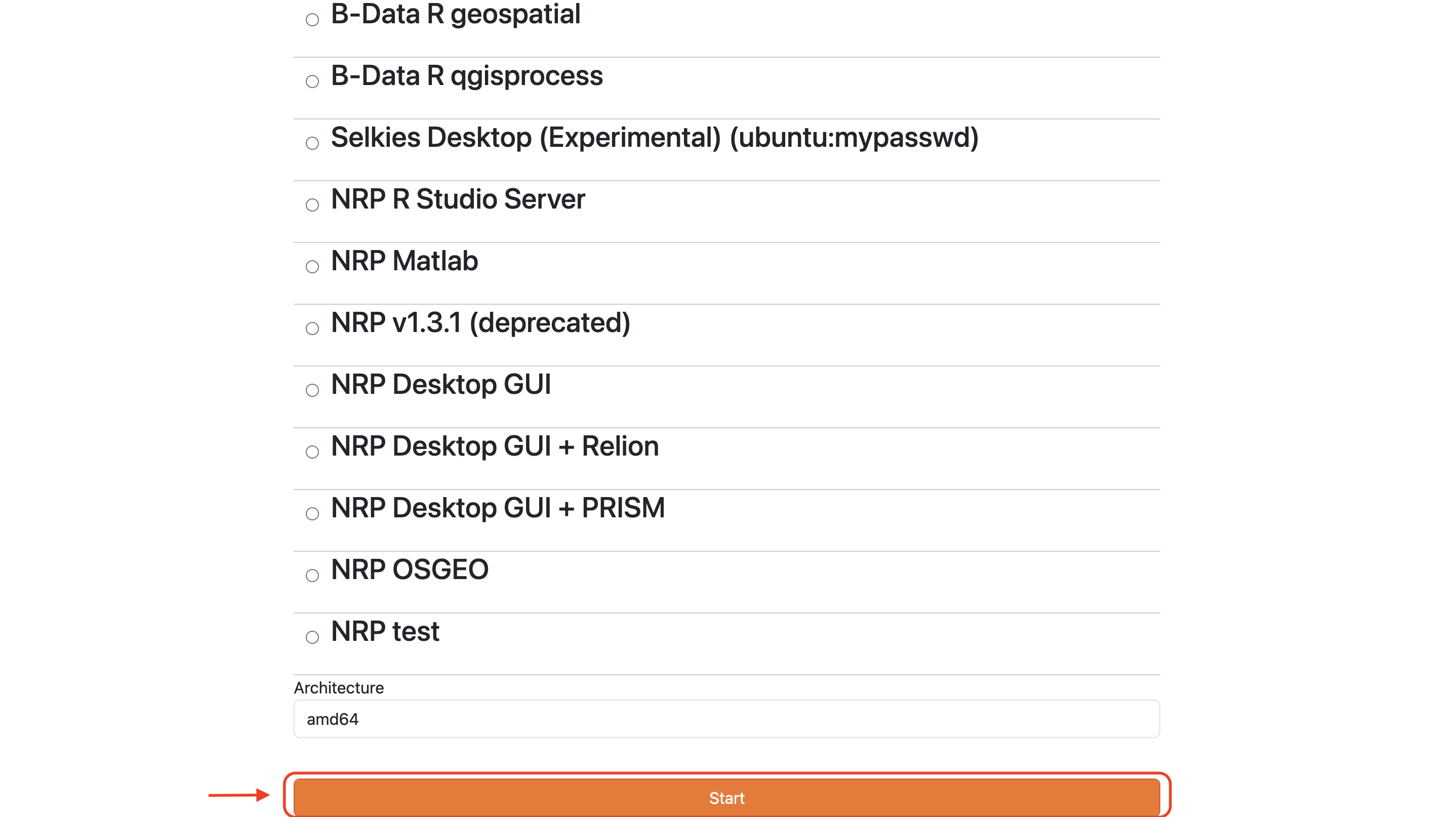
5. Start Your Server
Once you’ve configured your environment, scroll down and click Start
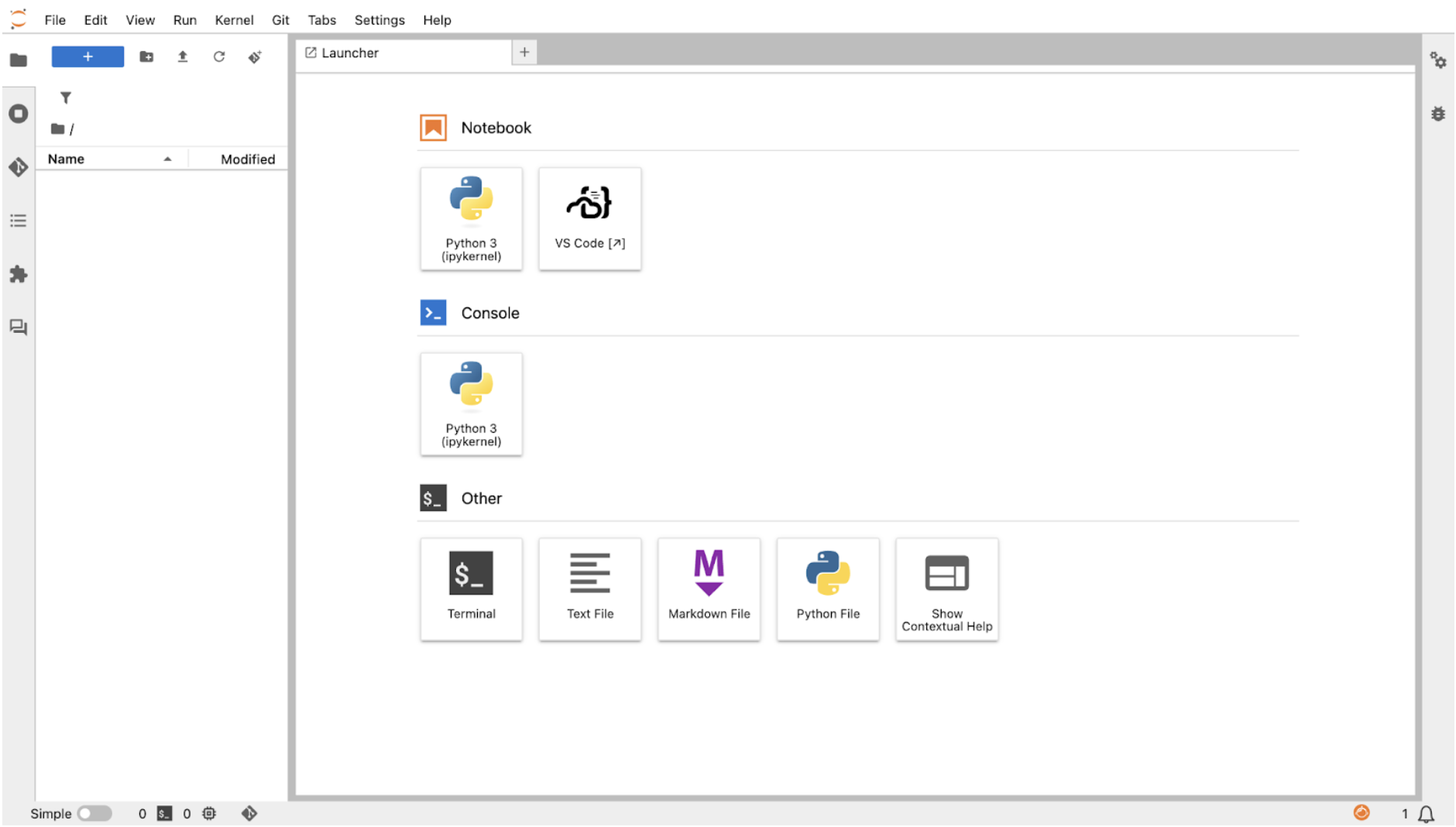
This will launch your JupyterHub server. It may take up to a minute to initialize.
7. Stop Server
Always remember to stop your server to release resources when you’re done.