How to Save Your Work from Jupyter Notebook/JupyterLite
When using Jupyter Notebook, it’s important to regularly save your work and download backups to your local computer. This guide walks you through both saving within Jupyter and downloading files to your local machine.
1. Save and Create a Checkpoint
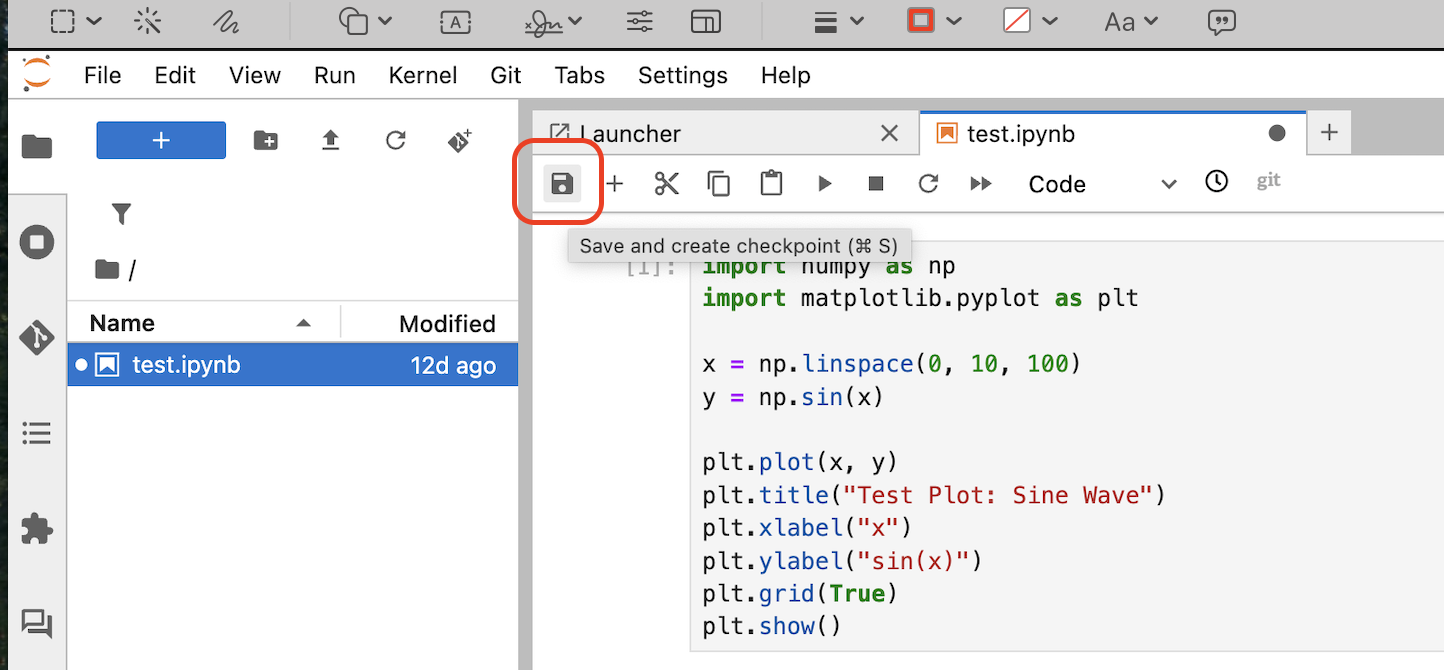
After modifying or running code in a notebook:
Click the Save icon in the toolbar.
This saves the current state and creates a checkpoint, which allows you to recover your work if something goes wrong.
2. Download the Notebook File to Your Local Machine
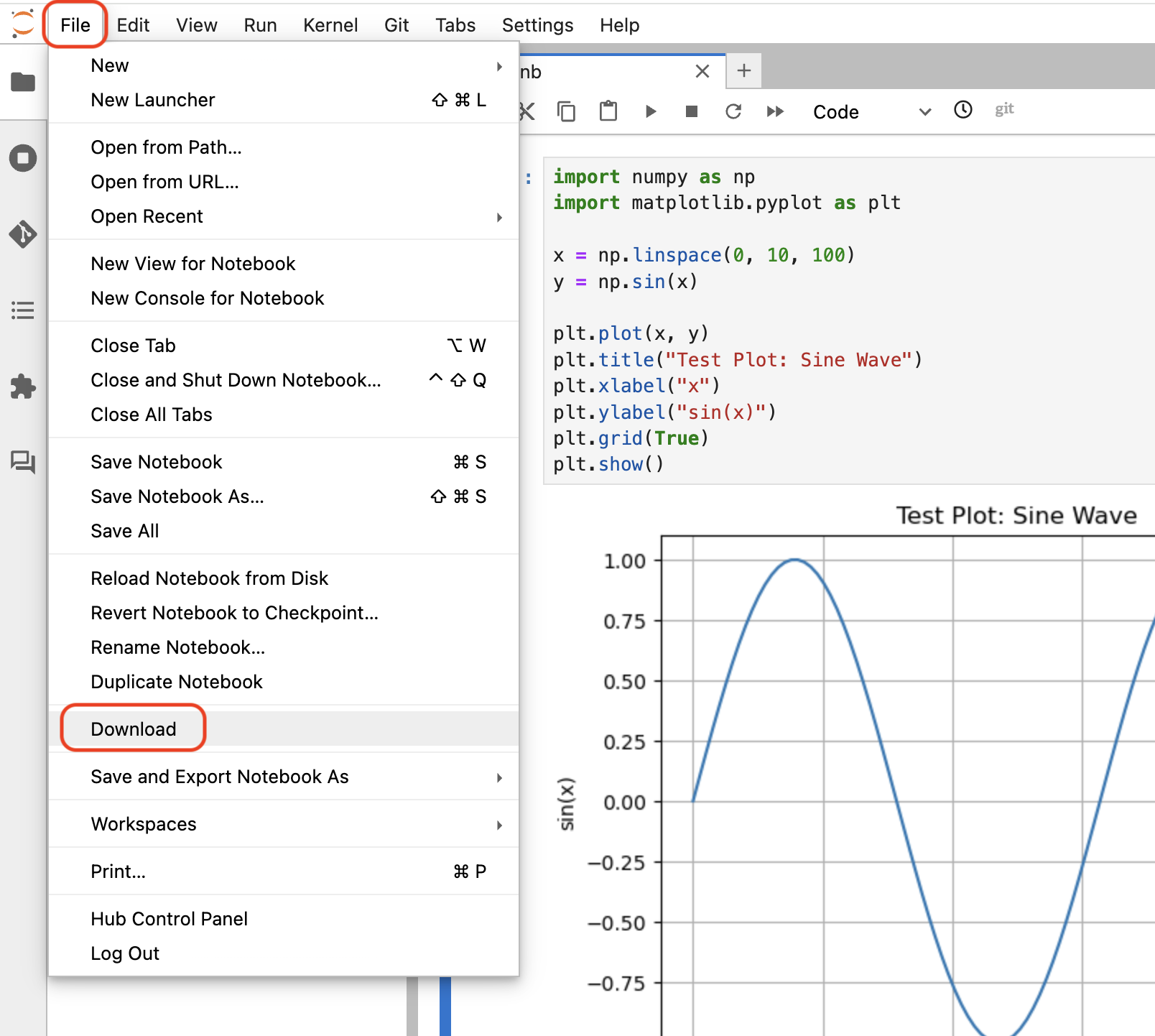
To ensure you have a backup or want to work offline, download the file:
Click File > Download
The
.ipynbfile will be saved to your local computer
3. Export to Other Formats
You can also export your notebook to various formats for documentation or presentations.
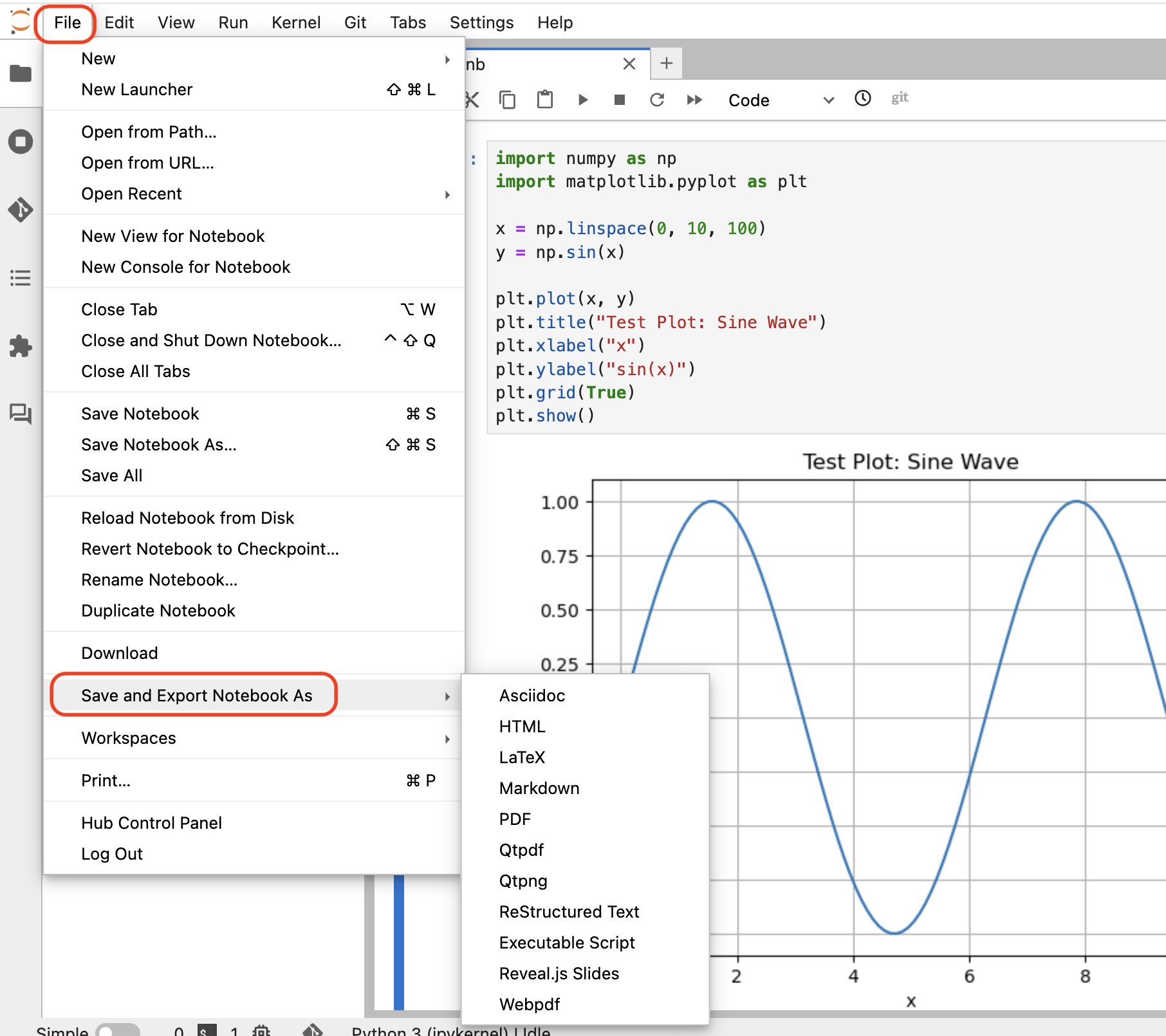
Go to: File > Save and Export Notebook As > [Choose file type]
Available export formats include:
HTML — for viewing in a browser
PDF — for printed reports or sharing
Markdown — for blog posts or GitHub
Python Script —
.pyfile for raw codeLaTeX, RST, Reveal.js slides, and more