Track Memory and Storage Usage in JupyterHub
When running notebooks on Nautilus via JupyterHub, it’s helpful to monitor your RAM and disk usage, especially if you’re working with large datasets or resource-intensive computations.
Checking Memory Usage (RAM)
To check how much memory your notebook environment is using, run the cell below:
Open an existing notebook
In a code cell, enter and run:
!free -h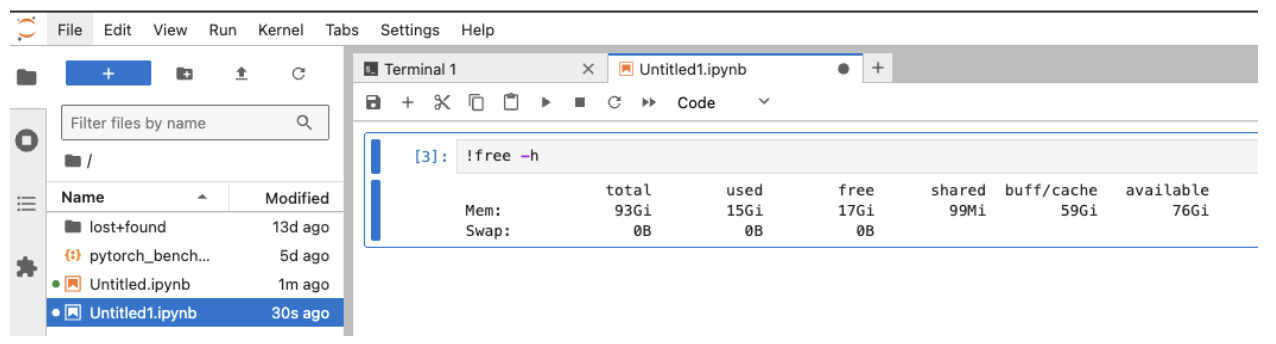
Checking Storage/Disk Usage
To check disk space usage across mounted volumes, run the cell below:
Open an existing notebook
In a code cell, enter and run:
!df -h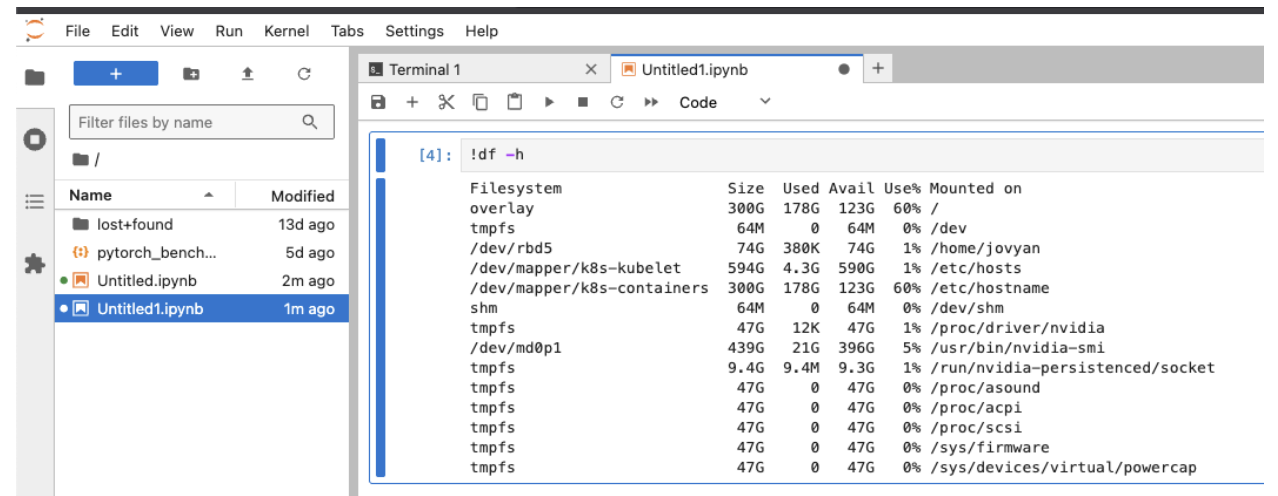
This command returns the disk space usage across mounted volumes, including:
Your home directory (
/home/jovyan)Temporary or shared volumes (if applicable)
Tip: To Free Up Space
Delete unused
.ipynbfiles or datasets in the file browserClear temporary variables in your notebook
Use
%resetordel variable_namein code to release memory